
Symptom
After upgrading an application directly from PowerServer 2022 R3 (earlier than Build 3391) to PowerServer 2025 or later, users may receive the following error when launching the application from the existing desktop shortcut:
Failed to parse the configuration file
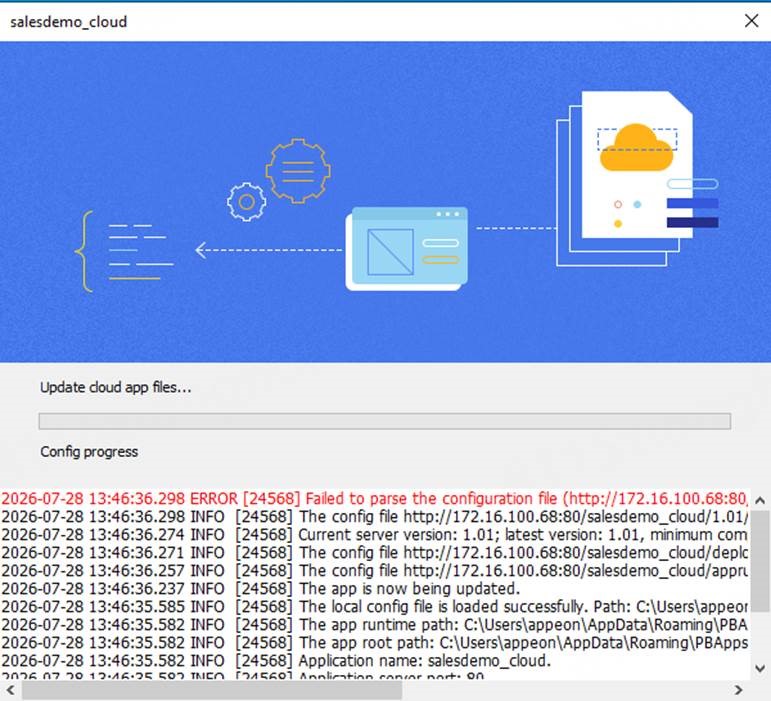
This issue occurs only when the application is launched using the original desktop shortcut.
Environment
Source version: PowerServer 2022 R3 earlier than Build 3391
Target version: PowerServer 2025 or later
Cause
PowerServer 2025 and later require Cloud App Launcher V3.
Starting with PowerServer 2022 R3 Build 3391, Cloud App Launcher introduced an automatic upgrade mechanism. When users launch an upgraded application from the desktop shortcut for the first time, Cloud App Launcher is automatically upgraded from V2 to V3 before the application starts.
If the application is upgraded directly from a version earlier than PowerServer 2022 R3 Build 3391 to PowerServer 2025, Cloud App Launcher is not automatically upgraded from V2 to V3, which results in the following error:
Failed to parse the configuration file
Resolution
To avoid this issue, it is recommended to upgrade Cloud App Launcher to PowerServer 2022 R3 Build 3391 or any later 2022 R3 build before upgrading to PowerServer 2025.
The following two upgrade approaches are recommended.
Option 1: Upgrade the Entire Application to an Intermediate Version (Recommended)
First, upgrade the following components to PowerServer 2022 R3 Build 3391 or later:
- Cloud App Launcher
- Runtime
- Application
After all client machines have completed the upgrade, upgrade the entire application to PowerServer 2025.
This is the simplest upgrade path and is the officially recommended approach. For detailed instructions, refer to the following document:
https://docs.appeon.com/pb/upgrading_pb_apps/Cloud_App_Launcher_is_upgraded.html
Option 2: Upgrade Only Cloud App Launcher
If upgrading the Runtime and application is not feasible at this time, you can upgrade only Cloud App Launcher while keeping the Runtime and application at their current versions.
After upgrading, the Cloud App Launcher can be updated in the deployment environment either manually or by using Deploy PowerServer Project, depending on your deployment requirements.
The regenerated Cloud App Launcher will use the new Launcher version (matching the current IDE version), while remaining compatible with the existing Runtime and application.
After all clients have upgraded to the new Cloud App Launcher, you can then proceed with upgrading the entire application to PowerServer 2025.
Upgrading the Cloud App Launcher Using the Default Launcher
- Upgrade the PowerBuilder IDE to PowerBuilder 2022 R3 Build 3391 or later.
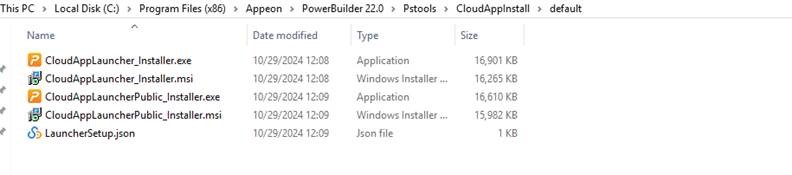
- In the PowerBuilder IDE installation directory (for example, <System Drive>:\Program Files (x86)\Appeon\PowerBuilder 22.0\Pstools\CloudAppInstall\default), copy all of the installation files used by the Default Launcher and replace the existing Cloud App Launcher installation files.
Upgrading Using a Custom Cloud App Launcher
- Upgrade the PowerBuilder IDE to PowerBuilder 2022 R3 Build 3391 or later.
- Open Tools > System Options > General, set Runtime Version back to the Runtime version currently used by the application (for example, Build 3356), then close and restart the PowerBuilder IDE.
- Open the PowerServer Project.
- Go to Deploy > Advanced > Configuration and open Cloud App Launcher Profiles.
- Select the custom Cloud App Launcher profile currently in use and click Rebuild.
- In the specified Launcher output directory, locate all of the installation files for the upgraded Cloud App Launcher.
Note: The LauncherSetup.json file contains the Cloud App Launcher version information. Be sure to replace this file as well.