Symptom
After upgrading Chrome or Edge, the application cannot be launched and repeatedly prompts for the installation of Appeon Multi Browser Plug-in.
The following error can be found when debugging.
WebSocket connection to 'ws://127.0.0.1:9056/appeon_ws' failed: Error in connection establishment: net::ERR_BLOCKED_BY_LOCAL_NETWORK_ACCESS_CHECKS
Environment
PowerServer 2020 or older
Cause
A new Edge (and Chrome) policy blocks WebSocket connections to localhost from public sites. Since the website cannot “talk” to the Appeon service running on your own PC (the WebSocket on port 9056), it assumes the plugin is not installed and keeps asking you to download it over and over again.
Resolution
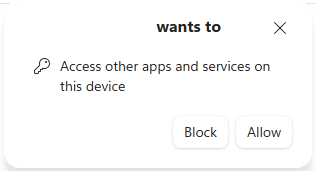
When the following dialog appears while running the application, please select Allow so that the application can proceed.
If you select Block, the dialog will no longer appear, however, the application will fail to run and will continue prompting you to install the plug-in. In this case, please refer to the two solutions below.
Solution 1 - Allow access to other apps and services on this device.
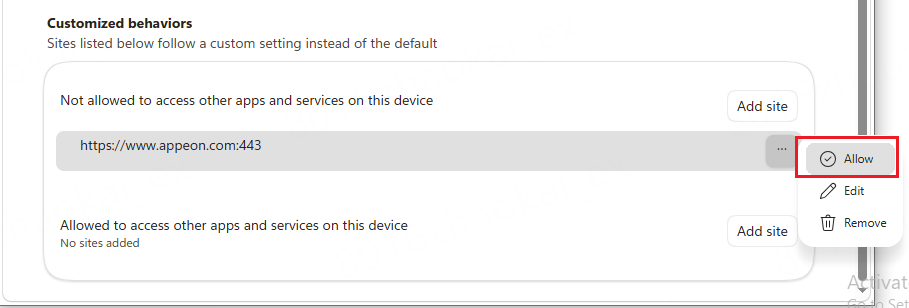
1. If you are using Edge, go to edge://settings/privacy/sitePermissions/allPermissions/loopbackNetwork. If you are using Chrome, go to chrome://settings/content/loopbackNetwork.
2. Set the URL under “Not allowed to access other apps and services on this device” to Allow.
Solution 2 - Disable the “Local Network Access Checks” flag
Please note that this will take effect for all sites.
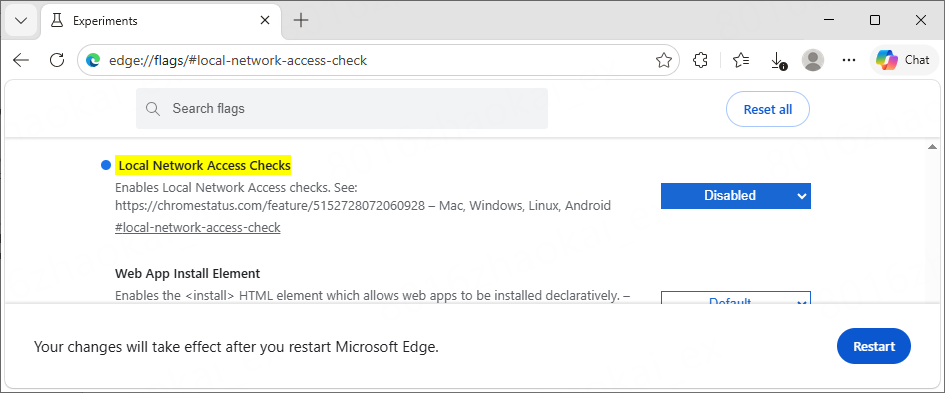
1. If you are using Edge, go to edge://flags/#local-network-access-check. If you are using Chrome, go to chrome://flags/#local-network-access-check.
2. Locate Local Network Access Checks and set it to Disabled from the dropdown list.
3. Click Relaunch (or Restart) in the bottom-right corner.